
PiST - A new cross-IDE (Integrated development environment) aimed at Atari assembler projects.
It includes editor, assembler, emulation with debugger, sprite editor and much more. It is available for Linux, Windows and macOS.
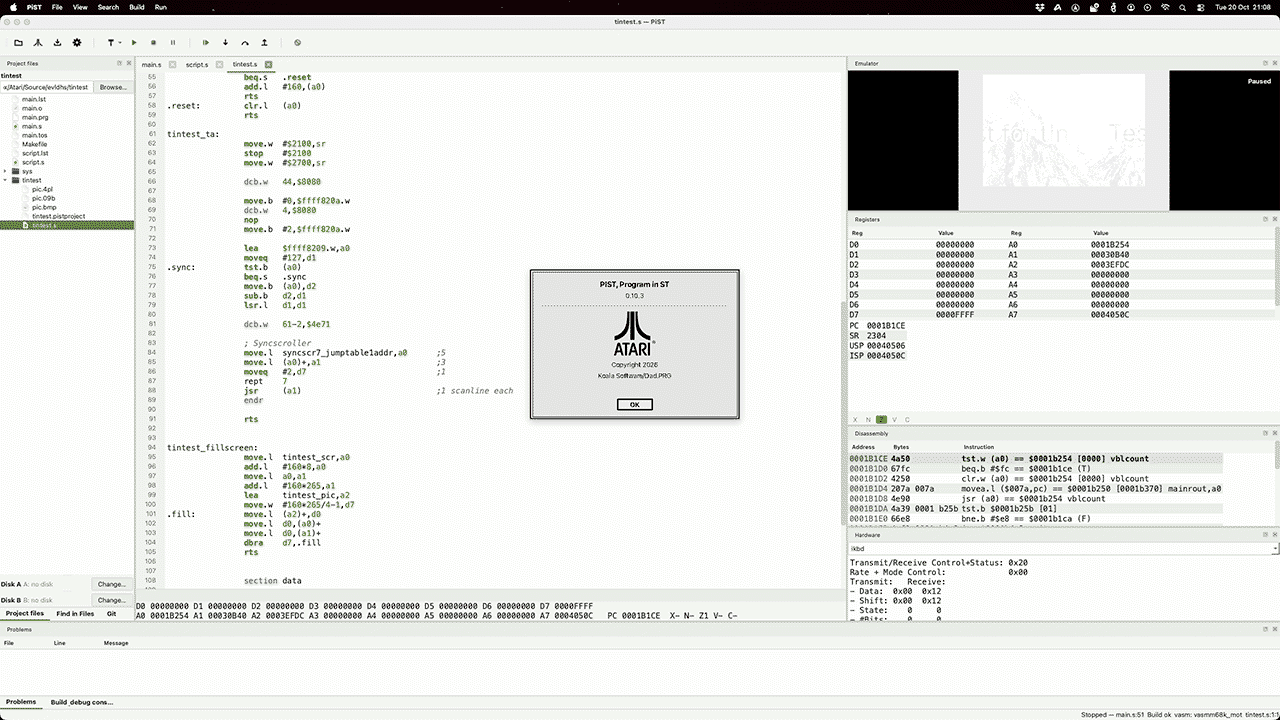
PiST v0.10.3 in action
Further description of the software snipped from it's Github page:
- Editor with m68k Motorola-syntax highlighting, error markers and the current execution line, find/replace (Ctrl+F / Ctrl+H, F3 and Shift+F3, match highlighting as you type, match-case and whole-word options, and a hit counter that admits its cap — past 2000 it reads "N of more than 2000" rather than counting on), completion as you type (Ctrl+Space, or Tab on a word: mnemonics, directives, and the build's labels and equates), a Go to Symbol palette (Ctrl+Shift+O), a hover card for any mnemonic, TOS call or label (below), Ctrl+click to open an
includeor jump to a label, and a searchable 68000 instruction + TOS system-call reference dock that follows the cursor — on atrap #1/#13/#14line (or a push feeding one) it names the GEMDOS/BIOS/XBIOS call being made and what it is being called with, and every entry carries a worked example and one line on when to reach for it
- Find in Files — search the whole project, not just the document in front of you (Ctrl+Shift+F, or the dock tabbed with Project files): results grouped by file with the match highlighted, double-click or F4 / Shift+F4 to walk them, and a header that says how many files were searched and what was skipped. It counts exactly the way the editor's find bar does, because the two run the same scan (below)
- Documents are files — every tab is a real file on disk; there is no scratch or untitled buffer. With nothing open the window shows a welcome view: your recent files and projects (the bundled demos on a first run), Open/New actions, and whether the assembler and a TOS ROM are ready. File ▸ New File… asks for a name, a location and one of four starting templates and creates the file on disk before opening it; File ▸ Close File (Ctrl+W) and Close All close documents deliberately. Renaming a file in the Project files pane follows the open tab, and deleting one on disk while it is open asks what to do — close the tab, save a copy, or keep editing.
- Git — a panel tabbed with Project files lists staged, changed and untracked files. Check the ones to commit, write a message, and commit (hooks run). The commit takes the index: the ticked rows are staged and the index is then committed with no pathspec, so a path already staged but left unchecked — or a conflicted path — is refused by name (include it, unstage it, or resolve it) rather than swept in or committed with its markers; PiST never rewrites your index. Pull and Push are the plain commands. The branch selector under the message switches branch; New… creates one. A switch that would overwrite local edits is refused. Select a row to see its diff: staged rows are the index, other rows the worktree. History lists commits, newest first; selecting one shows that commit. View → Git blame adds an author lane beside the line numbers; a click there does not toggle a breakpoint
- Sprite editor — File → New Image… (or open a
.pim; import Degas.PI1, NeoChrome.NEO, IFF, PNG) to paint on a pixel grid with the STfm/STe palettes, layers, onion-skin, frames with an animated preview, and export to those formats plus STOS.MBK, an assembler include, and a raw bitplane.datforincbin(palette, masked sprite, pre-shifted copies, every frame of the phase) with an optional ready-to-assemble scroller that animates it across the screen — see Sprite bitplane data. Importing adopts the file's palette as the active set. The select tool drags a rectangle you can move (drag inside it or nudge with the arrows), and copy, cut, paste (Ctrl+C/X/V) and delete; pasting keeps transparent pixels see-through. - A demo that is the tour —
demo/hello.sis a small, complete GEMDOS program written to show the IDE off: labels and equates to complete and jump to, TOS calls across all three traps to hover, a word to watch by name, and a hook script that logs every stop. Open it with the toolbar's Demo button or File ▸ Open Demo Project, and a session with nothing to reopen opens it for you — its own comments say what to try and where. - Project files — the left pane groups the host project (the GEMDOS hard drive) with Disk A and Disk B. Change or eject a floppy there (the same paths as in project settings); export selected hard-drive files to a new
.stor.msaimage; and edit a disk's own contents — Copy / Cut / Paste between panes, and Delete…, Rename… and New Folder… inside an image, each rewriting the image through the same confirm-and-rebuild gate the transfers use - Project settings — include paths, defines, target CPU, the assembler's own command-line arguments per build mode (Debug and Release, each editable one-argument-per-line with a Reset to defaults), and the emulator's machine, ROM, monitor, RAM, hard disk and floppy images, saved beside the source in a small JSON file
- Build through
vasmm68k_mot, with its diagnostics shown against the exact source line and toured from the keyboard (F4/ Shift+F4); the toolbar's Build button is a split button — click builds Debug, its arrow offers Build Release — and multi-file projects link with vlink. Both modes assemble in Devpac compatibility mode (-devpac), which is also what turns vasm's optimiser off; the Debug list adds-opt-x+to keep the symbol table the debugger reads, and the Release list strips it (-nosym) for a clean shipping.PRG— a symbols dock lists every label and equate with its address once the program is running - Run in Hatari, launched with the project's settings
- Debug with breakpoints, single-step, step-over, step out and run to cursor (Ctrl+F10), registers, memory and labelled disassembly. A stop marks its source line in the editor (a ▶ in the gutter, plus the highlighted line and the status bar) and leaves your caret, your scroll position and your keyboard exactly where they were — the emulator never interrupts your editing
- Follow execution hands the caret to the program counter instead: it goes to the line the machine is on, and every stop brings it along until you move the caret yourself. Run ▸ Follow Execution, or click the session chip in the status bar, or the ▶ in the gutter
- edit registers and memory while stopped — poke a value and keep debugging
- Stop hooks — a Lua script that runs at every stop, able to read and write memory and registers, log to the console and
continue()the program, so a harness, a trainer or a logging pass needs no rebuild (Run ▸ Stop hooks…, documented below) - multiple memory panes, each watching its own region
- Watchpoints break when a memory value changes (Hatari has no data watchpoints, so they are armed as change-tracking breakpoints). Ask for one by label —
counter.l— or by address, from Run ▸ Add watchpoint, the remote control or its MCP tool; a label is resolved again on every run, so it survives the load address GEMDOS picks afresh each time. A watchpoint fires only on a change: writing the same value again, or reading, does not trigger it. - a stack view of the values at the stack pointer, with likely return addresses marked
- a hardware registers view of the shifter, MFP, ACIA/IKBD, sound, blitter and more, from Hatari's
infocommands - a PC history view of how the machine reached the current stop
- an interactive debugger console — type any Hatari debugger command (
r,d,m $12596 20, …) and see its output in the console dock, with arrow-key history and Tab completion of commands and symbol names - a profiler: Hatari's CPU profiling per routine and source line — put the cursor where measuring should end and Profile to cursor line does the rest (or drive Profile Start/Stop manually across several stops). Results land as a routines tree (counts and cycles, with milliseconds and frames), the OS's share as a TOS/ROM row, and heat in the editor gutter
- Crash reports — off until you turn them on. A crash of PiST, not of the program you are debugging, can send a stack and a session phase on the next launch. Nothing from your source goes with it (below)
- Movable, tabbed debug panels — arrange the views and the emulator display however you like; a hand cursor marks the drag surfaces (drag a title bar to move a panel between areas, drag a tab to rearrange), or right-click for a "Move to" menu. The layout persists. View → Layout applies Editing, Debugging and Sprite arrangements, and can restore the one they replaced.


Comments
Thanks, I'll pass.